Web Dashboard
The dashboard is a website where server admins change Ririko's settings, read logs and see statistics. You do not need to remember commands. Everything you change on the dashboard works at once, and the bot picks it up within seconds.
1. Sign In
You can sign in if you have the Manage Server or Administrator permission in a server where Ririko is.
- Open the dashboard address that the host gave you. The default for a local install is http://localhost:3000.
- Click Sign in with Discord and approve the request. Ririko asks only to see your name and your list of servers.
- Pick your server on the Servers page.
The Servers page lists the servers where you can manage Ririko. If Ririko is not in a server yet, the page shows an Invite Ririko button.
If you lose the permission on Discord, or if Ririko leaves the server, the dashboard stops showing that server within a minute.
2. Keep Your Account Safe
2.1. Sessions
- A session ends after 30 minutes without activity, or after 12 hours.
- Open Account, then Sessions, to see where you are signed in. You can sign out one session or all other sessions.
- When you sign in from a new browser, Ririko sends you a direct message.
2.2. Passkeys
A passkey is a second step, such as a fingerprint or a security key. Passkeys are optional, but we recommend them.
- Open Account, then Passkeys.
- Click to add a passkey and follow your browser.
After you add a passkey, every sign-in needs a passkey check. Someone who steals your Discord account still cannot use the dashboard.
Some changes always need a passkey check from the last 5 minutes:
- the warning policy on the Moderation page,
- every change on the Reaction Roles page,
- everything in the owner console (section 6),
- removing a passkey.
If you have no passkey, you cannot make these changes. The page links to the Passkeys page. Ririko sends you a direct message when someone adds or removes a passkey.
If you lose your passkey, the operator of the bot can reset it with ririko passkeys:reset <user_id>. See deployment.md.
2.3. Your Card Album
Account, then Card Album, shows your own Waifu TCG cards, 24 on a page, newest first. You can filter by rarity or show only favorites. It is read only. Use /cards in Discord to equip, trade or dismantle cards.
3. Pages for Each Server
The sidebar groups the pages. This table tells you what each page does and where to read more.
| Group | Page | What it does | More |
|---|---|---|---|
| Server | Overview | Shows statistics (section 4.1). | Section 4.1 |
| Server | General | Sets the prefix and the time zone. | Section 4.2 |
| Server | Commands | Turns commands off, limits them to roles, sets cooldowns. | commands.md |
| Server | Integrations | Shows which outside services the host has set up. | Section 4.3 |
| Moderation | Moderation | Sets the warning policy. | moderation.md |
| Moderation | AutoMod | Sets the AutoMod rules. | moderation.md |
| Moderation | Logging | Picks the log channel. | Section 4.4 |
| Moderation | Case Log | Lists moderation cases. | moderation.md |
| Moderation | Audit Log | Lists changes made on the dashboard. | Section 4.5 |
| Members | Auto Roles | Gives roles to new members and bots. | modules.md |
| Members | Reaction Roles | Builds role buttons and menus. | modules.md |
| Members | Auto Voice | Sets up "Join to Create" channels. | modules.md |
| Members | Welcome Card | Sets the welcome card. | modules.md |
| Members | Farewell Card | Sets the farewell card. | modules.md |
| Engagement | XP & Ranking | Sets XP rules and level-up messages. | economy.md |
| Engagement | Games | Sets wager limits, game switches and cooldowns. | modules.md |
| Engagement | Giveaways | Ends giveaways and rerolls winners. | modules.md |
| Waifu TCG | Waifu TCG | Sets card drops and the TCG Manager Role. | waifu-tcg.md |
| Waifu TCG | TCG Achievements | Shows how many members unlocked each achievement. | waifu-tcg.md |
| Features | Music | Sets the default volume, music channel and DJ role. | music.md |
| Features | AI Chatbot | Sets the AI channel, style, persona, tools and model. | ai.md |
| Features | Image Generation | Sets image defaults and limits. | ai.md |
| Features | Stream Alerts | Adds streamers and sets alerts. | modules.md |
| Features | Free Games | Sets the free games channel. | modules.md |
Every page has a Save button. Ririko shows an error under a field if a value is not valid. Nothing is saved until all fields are valid.
4. Pages Explained
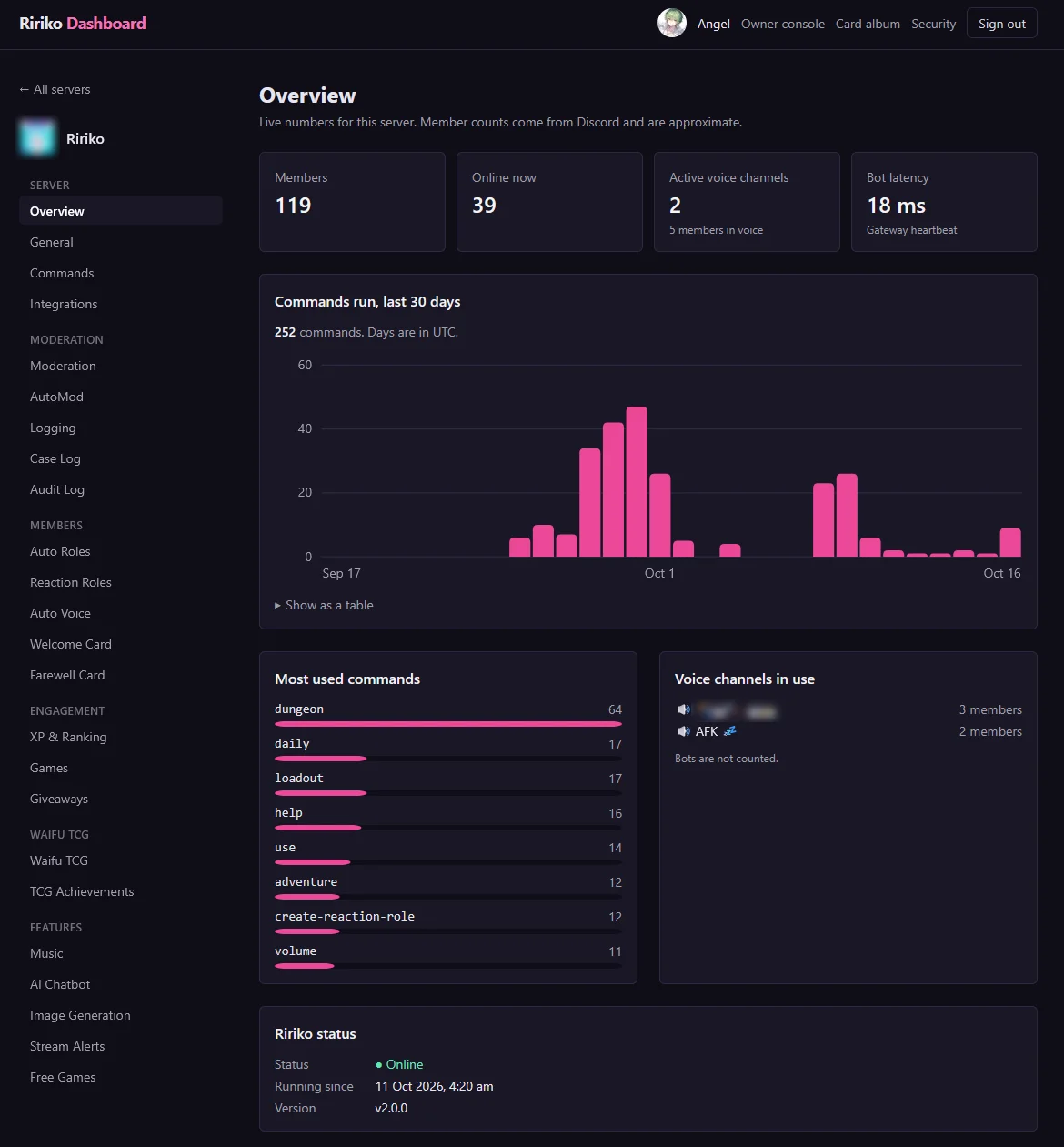
4.1. Overview
The Overview page shows:
- the number of members and how many are online,
- the number of voice channels in use,
- a chart of the commands used in the last 30 days, and the most used commands,
- Ririko's latency, version and uptime.
If Ririko is offline, the page shows that. Voice activity then shows as unknown.
4.2. General
| Setting | What it does |
|---|---|
| Command prefix | Starts text commands, such as !help. It has 1 to 5 characters and no spaces. Slash commands do not change. |
| Time zone | An IANA name, such as Asia/Kuala_Lumpur. Ririko uses it for reminders and for times it shows in this server. |
4.3. Integrations
This page is read only. It lists the outside services (Discord, AI, images, streams, music) and whether each one is configured. It never shows a key. To change them, the host edits .env. See adapters.md.
4.4. Logging
Pick the log channel. Ririko posts moderation cases, raid alerts and notices of dashboard changes there. Ririko needs View Channel, Send Messages and Embed Links in the channel.
Ririko writes no message, voice or role logs. The log channel is the only logging setting.
4.5. Audit Log
The Audit Log lists the changes made to the server's settings, newest first, 25 on a page. Each entry shows who changed what, when, and the old and new value of each field. It also lists changes made with ririko guild:config. It does not show addresses or browsers.
4.6. Change Notices
When someone changes a setting on the dashboard, Ririko posts a notice in the log channel. The notice says who changed which module and which fields. Text that members typed is shown as plain code and never pings anyone.
5. Command Line
Every setting on a server page can also be set with the command line. This helps when you manage many servers.
ririko guild:config <server_id>
ririko guild:config <server_id> <key>
ririko guild:config <server_id> <key> <value>
- With no key, the command lists all keys.
- With a key, it shows the value.
- With a key and a value, it sets the value.
The command line uses the same checks as the dashboard. Its changes appear in the Audit Log. See development.md.
6. Owner Console
Some settings are the same for every server: the economy values, the item shop, the card game rules, the dungeon seasons, the card game items and the achievements. Only bot owners can change them. Bot owners are the users in BOT_OWNER_ID.
- Add your Discord user ID to
BOT_OWNER_IDin.envand restart the bot. - Add a passkey to your account (section 2.2).
- Sign in. A link to the Owner console appears in the header.
- Pick a page. Each save needs a passkey check from the last 5 minutes. The page offers Confirm with passkey and save when it needs one.
| Page | What it does |
|---|---|
| Economy | Daily reward, streak bonus and bank capacity. See economy.md. |
| Item shop | The items of the /shop command. See economy.md. |
| Waifu TCG | Market tax, listing time and energy rules. See waifu-tcg.md. |
| Dungeon | Seasons, bosses and floor loot. See waifu-tcg.md. |
| TCG items | The items of the card game town shop. See waifu-tcg.md. |
| Achievements | The text and rewards of achievements. See waifu-tcg.md. |
| Servers | Every server that Ririko is in, who invited it, and how many commands each server used in 30 days. Read only. |
Other people get a "not found" page when they open the owner console.
7. Host Setup
The setup wizard (pnpm installer, see SETUP.md) writes these values for you. It also makes the SECRET_VAULT_KEY and checks with Discord that the client secret is right.
The dashboard needs these values in .env:
| Variable | What it does |
|---|---|
DISCORD_CLIENT_SECRET | The OAuth2 secret of your Discord application. |
DASHBOARD_URL | The public address of the dashboard. |
SECRET_VAULT_KEY | A key that encrypts sessions. Make one with openssl rand -hex 32. If you change it, everyone is signed out. |
BOT_OWNER_ID | The user IDs of the bot owners, separated by commas. |
CLIENT_IP_HEADER | Optional. The header that holds the real client address, such as cf-connecting-ip behind Cloudflare. Set it only if every request comes through that proxy. |
Steps:
- Follow section 8.1 of SETUP.md for a source install, or section 2.8 of deployment.md for Docker.
- In the Discord Developer Portal, open OAuth2 and add
<DASHBOARD_URL>/api/auth/callbackas a redirect. - Start the bot first. It creates the database tables the dashboard needs.
- Start the dashboard.
Optional: let people invite Ririko from the dashboard. A dashboard invite records who added the bot.
- In the Developer Portal, open OAuth2 and add
<DASHBOARD_URL>/api/invite/callbackas a redirect. - Open Installation and set the Install Link to Custom URL
<DASHBOARD_URL>/api/invite. - Optional: open Bot and turn on Requires OAuth2 Code Grant. Do this last, only after steps 1 and 2 work. Without them, every invite fails.
The dashboard uses the __Host- cookie prefix. Browsers accept it only on HTTPS or on localhost. Put the dashboard behind a proxy that sets the X-Forwarded-For header, or set CLIENT_IP_HEADER. Never open it over plain HTTP on a LAN address.
8. Limits
- The dashboard allows 30 changes in a burst and then about 1 each second for each person. Sign-in requests are limited to 20 a minute for each address.
- The dashboard never shows keys or passwords.
- Giveaways are created in Discord, not on the dashboard.
- The dashboard changes only what the bot reads. If a setting is not on a page, the bot does not use it.